LMS
The iTero Lab Connector API allows designated labs to automatically retrieve iTero cases as specified by the doctor in the iTero Rx.
Cases are delivered directly to the lab’s software in a predefined open format, ensuring seamless integration. If additional scanning is needed, labs can easily return cases to the doctor for further action.
With secure authentication, iTero credentials only need to be entered once during the initial pairing process, enhancing convenience and security.
Check Authentication and Pairing to learn more about the pairing process.
Definitions, Acronyms, Abbreviations
| Term | Description |
|---|---|
| Myitero.com | iTero portal to manage account and cases |
| Production environment | Live environment |
| Redirect URL | URL to which the response should be returned |
| Rx | A prescription for a scan |
| IDE (iTero Data Export) | Zip file that contains a scan's assets as well as the 3D model |
Lab Connector API Overview
iTero intra-oral scanners capture the scanned data in a native proprietary iTero format, which can be exported to variety of 3D formats and used by 3rd party systems.
The iTero Lab Connector API enables the retrieval of artifacts into the 3rd party system.
The API uses the following REST services:
- Get Orders – Returns the list of iTero cases that are ready for download.
- Get Order by RXID – Returns the order details of the passed Rx Id a specific order.
- Return Scan – Returns a specific order back to the doctor for rescan.
- Download Scan
Prerequisites
Authentication and pairing must be completed before calling the API, resulting in:
- access_token
- refresh_token
- {{Domain}} obtained through Discovery
- {{Path}} obtained through Discovery
Lab Connector Endpoints
Get Orders
| Endpoint information | |
|---|---|
| HTTP Method | GET |
| Path | {{Domain}}/{{Path}}/orders/lab |
| API Version | 2 |
| Discovery Version | 2 |
Listed cases
Cases that are listed as a result of Get Orders will arrive in the following statuses:
| Case Flow | Status |
|---|---|
| Received from clinic | Ready for Download |
| Received from modeling | Lab Review |
Header
Access token that is returned in pairing step.
Type: Bearer Token
Query Parameters
- Key=queryParams.offset, Value=0 Number of orders to skip.
- Key=queryParams.pageSize, Value=1024 Number of orders to retrieve. Maximum number is 1024
Orders are returned from oldest to the most recent. In order skip ahead to more recent orders use the offset variable.
Response
Response codes are:
| HTTP Status Code | Description | Scenario | Recommendation |
|---|---|---|---|
| 200 | OK | / | / |
| 401 | Unauthorized error | 1. Wrong token 2. Missing token |
Double-check that the call is using the correct pairing token |
| 500 | Internal Server error | / | A retry mechanism |
In case of returned code of 200, the following response will be returned:
{
    "Data": {
        "HasMore": bool,
        "PageSize": number,
        "Offset": number,
        "Results": [
                {
                "ProcedureName": string,
                "ProcedureTypeName": string,
                "Urls": {
                    "MyiTero3DViewerUrl": string,
                    "IDEFileUrl": string,
                    "ThumbnailsUrl": string,
                    "ScreenCaptureUrl": string
                        },
                "OrderId": number,
                "DoctorId": number,
                "CompanyId": number,
                "PatientId": number,
                "OrderCode": string,
                "ScanDate": date,
                "DueDate": date,
                "PatientName": string,
                "PatientChartNumber": string,
                "CompanyName": string,
                "DoctorName": string,
                "DoctorLicenseNumber": string,
                "RxId": Guid,
                "CaseType": string,
                "Status": string,
                "ScanningOperatorId": number,
                "ScanningOperatorName": string,
                "ScanningTime": number,
                "LabId": number,
                "LabName": string,
                "Notes": string,
                "Preps": [],
                "ScannerModelDescription": string,
                "ScannerModelId": int
                 },
                [. . . More scans info]
        "Status": number
            }
}
The following tables list the information that is returned in the Data section of the response:
| Field | Sub/Field | Type | Description |
|---|---|---|---|
| HasMore | / | Boolean | True if more orders are available for retrieval, otherwise, false |
| PageSize | / | Number | Number of orders to retrieve. Maximum number is 1024 |
| Offset | / | Number | Paging is implemented by the parameters Offset and PageSize together. Use 0 to get the first batch of scans. Increase the offset by PageSize to get the next batch until HasMore is false. Most recent scans are listed last. |
The Results returned in the Data section of the response are:
| Subfield | Type | Description |
|---|---|---|
| ProcedureName | String | Name of Procedure |
| ProcedureTypeName | String | Name of procedure type |
| MyiTero3DViewerUrl | String | MyiTero.com 3D scan viewer URL |
| IDEFileUrl | String | URL to retrieve STL/PLY artifact |
| ThumbnailsUrl | String | URL to retrieve Thumbnails artifacts |
| ScreenCaptureUrl | String | URL to retrieve scan's screenshots |
| OrderId | Number | Order Id of the order available for retrieval |
| DoctorId | Number | Id of the person that performed the scan |
| CompanyId | Number | Id of the company that performed the scan |
| PatientId | Number | Deprecated value |
| OrderCode | String | Order code of the order available for retrieval |
| ScanDate | Date | Order’s scan date |
| DueDate | Date | Restorative orders - Expected delivery date of the product from the lab Invisalign orders - Order creation date |
| PatientName | String | Order’s patient name |
| PatientChartNumber | String | Order’s patient chart number |
| CompanyName | String | Name of the company that performed the scan |
| DoctorName | String | Name of the person that performed the scan |
| DoctorLicenseNumber | String | License number of the person that performed the scan |
| RxId | GUID | ID of scan’s Rx |
| CaseType | String | - Expanded - Full Arch - Quadrant - Reference Model - iRecord |
| Status | String | Order status: - Ready for Download - Lab Review |
| ScanningTime | Number | Number of seconds of scan |
| LabId | Number | ID of the lab that received the scan |
| LabName | String | Name of the lab that received the scan |
| Notes | String | Notes of the doctor |
| Preps | List | Array of preps with their attributes, such as type of unit, tooth number etc. |
| ScannerModelDescription | String | Scanner model used to create the order |
| ScannerModelID | Int | Scanner model unique identifier |
Status of the call will be 1 for a success call. Otherwise 0
Note
Only use the returned links to download assets. This will make sure the call does not break in case iTero changes the URLs for downloads.
Procedures and Types
| ID | Procedure Name | Type Name |
|---|---|---|
| 1 | Study Model - iRecord | - Ortho Model/iCast |
| 2 | Invisalign / Vivera | - Invisalign Aligners - Invisalign First Aligners - Invisalign First Palatal Expander - Vivera Retainer - Invisalign Retainer |
| 3 | Implant Planning | - Surgical guide Tooth supported - Surgical guide Tissue Supported - Surgical guide Bone supported |
| 4 | Fixed Restorative | / |
| 5 | Denture/Removable | - Partial Denture/Framework - Immediate Denture - Full Immediate Denture - Full Denture Tissue Based - Full Denture Implant Based |
| 6 | Appliance | - Night guard - Bite Splint - Sports/Mouth guard - Apnea/Sleep Appliance - Ortho Appliance |
Scanner Models Description
| Scanner Model ID | Scanner Model Description |
|---|---|
| 1 | HDU |
| 2 | HD2.9 |
| 3 | iTero Element |
| 4 | Element Flex |
| 5 | HD2 |
| 6 | HD2.1 |
| 7 | HD2.05 |
| 8 | Element 2 |
| 9 | Element 2 5D |
| 10 | Flex 5D |
| 11 | Flex 5D Ready |
| 12 | Element 2 5D Ready |
| 13 | 5D Wand UPG Kit |
| 14 | 5D Flex Wand UPG Kit |
| 15 | iTero Element 2 Plus, Cart Configuration |
| 16 | iTero Element 2 Plus, Mobile Configuration |
| 17 | iTero Element 5D Plus, Cart Configuration |
| 18 | iTero Element 5D Plus, Mobile Configuration |
| 19 | iTero Element 5D Plus Lite, Cart Configuration |
| 20 | iTero Element 5D Plus Lite, Mobile Configuration |
| 21 | iTero Lumina Cart Configuration |
| 22 | iTero Lumina Mobile Configuration |
| 23 | iTero Lumina Wand UPG Kit Cart |
| 24 | iTero Lumina Wand UPG Kit Mobile |
| 25 | Flex Plus |
| 26 | iTero Element 5D LC - Plus Lite package |
| 27 | iTero Element 5D LC - Plus package |
| 28 | iTero Lumina Pro Mobile Configuration |
| 29 | iTero Lumina Pro Cart Configuration |
| 30 | iTero Lumina PC Configuration |
| 31 | iTero Lumina Essential PC Configuration |
Link to iTero Viewer
The returned response provides a direct link to view the case in iTero 3D viewer (ViewerUrl).
Note, it is required to log in to myitero.com to see the scan (once per session).
Get Order by RXID
| Endpoint information | |
|---|---|
| HTTP Method | GET |
| Path | {{Domain}}/{{Path}}/orders/:rxId |
| API Version | 2 |
| Discovery Version | 2 |
Header
Access token that is returned in pairing step.
Type: Bearer Token
Path Variables
Key=rxId, Value=RX GUID for which the order information is requested.
Response
Response codes are:
| HTTP Status Code | Description | Scenario | Recommendation |
|---|---|---|---|
| 200 | OK | / | / |
| 400 | Bad request | Wrong RXID format | Check if the RXID format is incorrect |
| 401 | Unauthorized error | 1. Wrong token 2. Missing token |
Double-check that the call is using the correct pairing token |
| 404 | Not found | 1. Wrong RXID 2. The scan is not yet performed |
1. Double-check if the RXID is correct 2. Waiting for performing |
| 500 | Internal Server error | / | A retry mechanism is recommended for this error message |
In case of returned code of 200, the following response will be returned:
{
    "Data":{
        "ProcedureName": string,
        "ProcedureTypeName": string,
        "RxId": GUID,
        "OrderId": number,
        "OrderCode": string,
        "ScanningDate": date,
        "DoctorId": number,
        "ScanningOperatorId": number,
        "ScanningOperatorName": string,
        "ScanningTime": number,
        "PatientFirstName": string,
        "PatientLastName": string,
        "PatientChartNumber": string,
        "CaseType": string,
        "CompanyId": number,
        "CompanyName": string,
        "LabId": number,
        "LabName": string,
        "Preps":[
                {
                "AdaId": number,
                "UnitTypeId": number,
                "UnitTypeName": string,
                "BridgeId": number
                }
                ],
        "Notes": string,
        "ViewerUrl": string,
        "ThumbnailsDownloadUrl": string,
        "IdeFileUrl": string,
        "ScreenCaptureFileUrl": string,
        "Status": string,
        "DueDate": date,
        "PatientId": number,
        "DoctorName": string,
        "DoctorLicenseNumber": number,
        "Urls": {
            "MyiTero3DViewerUrl": string,
            "IDEFileUrl": string,
            "ScreenCaptureUrl": string,
            "ThumbnailsUrl": string
                },
        "ScannerModelDescription": string,
        "ScannerModelId": int
            },
    "Status": number
}
Below is a table describing the information that has been returned in the Data section of the response:
| Field | Type | Description |
|---|---|---|
| ProcedureName | String | Name of Procedure |
| ProcedureTypeName | String | Name of procedure type |
| RxId | GUID | Rx id for the retrieved scan |
| OrderId | Number | Order Id of the order |
| OrderCode | String | Order code of the order |
| ScanningDate | Date | Order’s scanning date time (Always in GMT + 0) using ISO_8601 format |
| DoctorId | Number | Id of the doctor |
| ScanningOperatorId | Number | Id of person that performed the scan |
| ScanningOperatorName | String | Name of person that performed the scan |
| ScanningTime | Number | Duration of the scan in seconds |
| PatientFirstName | String | Order’s patient’s first name |
| PatientLastName | String | Order’s patient’s last name |
| PatientChartNumber | String | Order’s patient Chart number |
| CaseType | String | - Expanded - Full Arch - Quadrant - Reference Model - iRecord |
| CompanyId | Number | ID of the company that performed the scan |
| CompanyName | String | Name of the company that performed the scan |
| LabId | Number | ID of the lab that received the scan |
| LabName | String | Name of the lab that received the scan |
| Preps | List | Array of preps with their attributes, such as type of unit, tooth number etc. |
| Notes | String | Notes of the doctor |
| ViewerUrl | String | MyiTero.com 3D scan viewer URL |
| ThumbnailsDownloadUrl | String | URL to retrieve Thumbnails artifacts |
| IdeFileUrl | String | URL to retrieve STL/PLY artifact |
| ScreenCaptureFileUrl | String | URL to retrieve screen captures (if any) |
| Status | String | Order status: Ready for Download or Lab Review |
| DueDate | Date | Restorative orders - Expected delivery date of the product from the lab. Invisalign orders - Order creation date |
| PatientId | Number | Deprecated value |
| DoctorName | String | Name of the person that performed the scan |
| DoctorLicenseNumber | String | License number of the person that performed the scan |
| MyiTero3DViewerUrl | String | MyiTero.com 3D scan viewer URL |
| IDEFileUrl | String | URL to retrieve STL/PLY artifact |
| ScreenCaptureUrl | String | URL to retrieve screen captures (if any) |
| ThumbnailsUrl | String | URL to retrieve Thumbnails artifacts |
| ScannerModelDescription | String | Scanner model used to create the order |
| ScannerModelId | Int | Scanner model unique identifier |
Status of the call will be 1 for a success call. Otherwise 0
Refer to Procedures and Types above for procedure types.
Note
Only use the returned links to download assets. This will make sure the call does not break in case iTero changes the URLs for downloads.
Get Full RX
Returns the scan's clinical information once the scan has been completed.
Allows to obtain the Rx of an order without the need to download the IDE.
| Endpoint information | |
|---|---|
| HTTP Method | GET |
| Path | {{Domain}}/{{Path}}/GetRX/GetFullRX/:rxid |
| API Version | 2 |
| Discovery Version | 2 |
Should you parse order information through the IDE’s XML or the GetFullRx endpoint?
GetFullRx endpoint doesn't return information about the specific files contained in the IDE. The Export Format, the number and name of files, transformation coordinates, and scan range are not present in GetFullRx.
Note
- If obtaining these values is necessary, parsing the XML will be required.
- The XML file and the GetFullRx JSON response have different key names and hierarchical structure.
If the intention is to download the IDE’s for every order, the recommended path is to parse the XML file instead of this JSON endpoint, since the XML has more information.
The following table lists some key content differences between the order information in GetFullRx JSON response, compared to the IDE’s XML:
| XML | JSON |
|---|---|
| ActualUsedTransformsTransformation | (Not present) |
| Modeled | (Not present) |
| PracticeShipToAddress | (Not present) |
| ScanRange: UpperRange LowerRange |
(Not present) |
| iTeroExport Version | (Not present) |
| PracticeShipToAddress | (Not present) |
| ExportedObjectsObject | (Not present) |
Terminology
- Transformation: Applies coordinates so that 3D viewers or CAD/CAM software can open the case in the exact position every time.
- Modeled: If a case has gone to modeling services.
Header
Access token that is returned in pairing step.
Type: Bearer Token
Response
| HTTP Status Code | Description | Scenario | Recommendation |
|---|---|---|---|
| 200 | OK | / | / |
| 400 | Bad request | Wrong RXID format | Check if the RXID format is incorrect |
| 401 | Unauthorized error | 1. Wrong token 2. Missing token |
Double-check that the call is using the correct pairing token |
| 404 | Not found | 1. Wrong RXID 2. The scan is not yet performed |
1. Double-check if the RXID is correct 2. Waiting for performing |
| 500 | Internal Server error | / | A retry mechanism is recommended for this error message |
If the server responds with HTTP status code 200, the response will follow the schema outlined below:
{
  "Version": 1,
  "ID": "GUID",
  "CompanyID": "int",
  "Patient": {
    "Id": "int", //This value is deprecated and should be ignored
    "UID": "GUID",
    "FirstName": "string",
    "LastName": "string",
    "ChartNumber": "string",
    "RowStatus": 1,
    "DateOfBirth": "datetime",
    "Gender": "int",
    "MI": null,
    "ZipCode": null,
    "DateUpdated": "datetime"
  },
  "Order": {
    "ID": "int",
    "Code": "string",
    "Status": null,
    "State": null,
    "CaseTypeId": "int",
    "ScanDate": "datetime",
    "DueDate": "datetime",
    "ShipToId": "int",
    "ShipToName": "string",
    "DirectToLab": "bool",
    "IsBracketsPresent": "bool",
    "HasNIRI": "bool",
    "NIRIhasOnlyIOC": "bool",
    "ProcedureId": "int",
    "ProcedureMapId": "int",
    "ProcedureTypeId": "int"
  },
  "Doctor": {
    "Id": "int",
    "Name": "string",
    "Licence": "string"
  },
  "Notes": "string",
  "Teeth": [ //Nullable
    {
      "ToothID": "int",
      "UnitTypeID": "int",
      "SpecificationId": "int",
      "MaterialID": "int",
      "ImplantTypeID": "int", //Nullable
      "ShadeIncisal": "int", //Nullable
      "ShadeBody": "int", //Nullable
      "ShadeGingival": "int", //Nullable
      "PreparationDesignBuccal": "string",
      "PreparationDesignBuccalId": "string",
      "PreparationDesignLingual": "string",
      "PreparationDesignLingualId": "string",
      "MarginDesignBuccal": "string",
      "MarginDesignBuccalId": "string",
      "MarginDesignLingual": "string",
      "MarginDesignLingualId": "string",
      "StumpfShade": "string",
      "Analog": null, //Deprecated Value, not in use.
      "CAMarginStyle": null, //Optional
      "CAMarginStyleId": null, //Optional
      "CAMaterialID": null, //Optional
      "AbutmentType": "int", //Nullable
      "AbutmentMarginStyle": null, //Optional
      "AbutmentMarginStyleId": null, //Optional
      "AbutmentMaterialId": "int", //Nullable
      "BridgeIndex": "int",
      "ToothInBridgeTypeID": "int", //Nullable
      "IsValidForSend": "bool", //Will always be true
      "ShadeSystemId": "int",
      "PonticDesignID": "int",
      "ImplantBasedRestorationTypeId": "int",
      "AdditionalDies": "int",
      "DieDitch": "int"
    }
  ],
  "Bridges": [
    {
      "FromToothID": "int",
      "ToToothID": "int",
      "FromAdaID": "int",
      "ToAdaID": "int",
      "BridgeTypeId": "int",
      "BridgeIndex": "int",
      "FromTooth": {\
       //(Same keys as a ‘Teeth’ element)
      },
      "ToTooth": {
       //(Same keys as a ‘Teeth’ element)
      }
    }
  ],
  "CompletionLevel": "int",
  "ShadeSystemId": "int",
  "TechnicalNotes": null, //Notes from the clinic that are added to the Rx when scanning
  "PrePrepScan": "bool",
  "MultiBiteScan": "bool",
  "AligntechNotes": "string", //Nullable
  "OrderInformation": {
    "LocalIdeCadCamSystemId": "int",
    "IdeCadCamSystemId": "int",
    "IdeProductionCenterId": "int",
    "IdxProductionCenterId": "int",
    "DieDitch": "bool",
    "AdditionalDies": "int",
    "NumOfModels": "int",
    "IntegrationCompany": "int"
  },
  "TreatmentStage": null, //Only relevant for Invisalign
  "AlignerNumber": null, // Only relevant for Invisalign. Optional
  "HasNIRI": "bool",
  "BillToAddress": "string", //Nullable
  "ShipToAddress": "string", //Nullable
  "PayerAddress": "string", //Nullable
  "CompanyName": null,
  "ForceRxFormUpdate": "bool",
  "ToothNumberingSystem": "int",
  "ApplianceDetails": null, //Type of appliances
  "DentureDetails": null, //Type of denture
  "MultiBiteRestoScan": {
    "Enabled": "bool",
    "Includes": [
      //This array is empty if the field 'Enabled' is set to false
      "string",
      "string", //Nullable
      "string", //Nullable
      "string" //Nullable
    ]
  },
  "EmergenceProfile": "bool",
  "IsDraft": "bool",
  "StatusId": "int",
  "IsActive": "bool"
}
Map Rx ID’s to values
In order to obtain the relevant string definition for each numeric ‘ID’ field that is obtained, iTero provides an Rx-definition JSON file with a hierarchical structure.
Please refer to ‘Rx Definition’ section under ‘Data Dictionary’
Download Scan
All iTero scans have three available asset types for download:
- IMAGE_GALLERY – for image thumbnails of the scan
- IDE – for STL/PLY file (along with thumbnails for ortho cases, metadata and XML files)
- SCREEN_CAPTURE - for screen captures
An order will change its status to 'Downloaded' only after the IDE file has been successfully retrieved. Any HTTP error in response to the download endpoint will not change the order's status.
Download URLs must be obtained from either the 'Get Orders' endpoint or the 'Get Order by RXID' endpoint. It is imperative to obtain URL's from these endpoints as links are dynamic and may change over time.
- The IDE file can be downloaded using the
IdeFileUrlfield inside theUrlsobject.
Info
A link to screen captures is always provided, even if no captures were taken. If no captures are available, the call will return a 204 (No Content) error code. Screen captures can be taken at any time after the scan is completed. Once captures are taken, they will become available for download.
Header
Access token that is returned in pairing step.
Type: Bearer Token
Response
Response codes are:
| HTTP Status Code | Description | Scenario | Recommendation |
|---|---|---|---|
| 200 | OK | / | / |
| 204 | No content | There are no 3D files or screenshots created for the order | / |
| 400 | Bad request | Wrong asset format | Double-check that the call is using the correct asset name |
| 401 | Unauthorized error | 1. Wrong token 2. Missing token |
Double-check that the call is using the correct pairing token |
| 404 | Not found | 1. Wrong orderid 2. Wrong asset type 3. 3D/iDE file is not yet ready |
This error code will trigger the generation of the 3D file (iDE) if not generated; Therefore, a retry mechanism is recommended. Make sure to wait enough time as the file generation takes around 1 min. |
| 500 | Internal Server error | / | A retry mechanism is recommended for this error message. |
Downloaded Artifacts
All artifacts types are downloaded in a zip format.
| Asset Type | Notes | Artifacts |
|---|---|---|
| iDE | 3D file, generated by the format selected by the user in Export Settings (in myitero.com) | - 3D files (STL/PLY) - RX in HTML format - Scan metadata in XML format - Thumbnails for ortho case |
| IMAGE_GALLERY | Also called thumbnails. | Six photos (JPG) of the scan of different views |
| SCREEN_CAPTURE | A link to screen captures is provided regardless if screen captures were taken. The call will return error code 204 (no content) in case no captures are available. Screen captures can be taken at any time after the scan is completed (from the scanner or in myitero.com), so if taken at a later time, they will be available for download using this API. |
- Entire scanner window - 3D image - 2D NIRI image (iTero Element 5D only) - 2D color image (iTero Element 5D only) |
Export Format
A scan will be converted to the format that is selected by the lab on myitero.com:
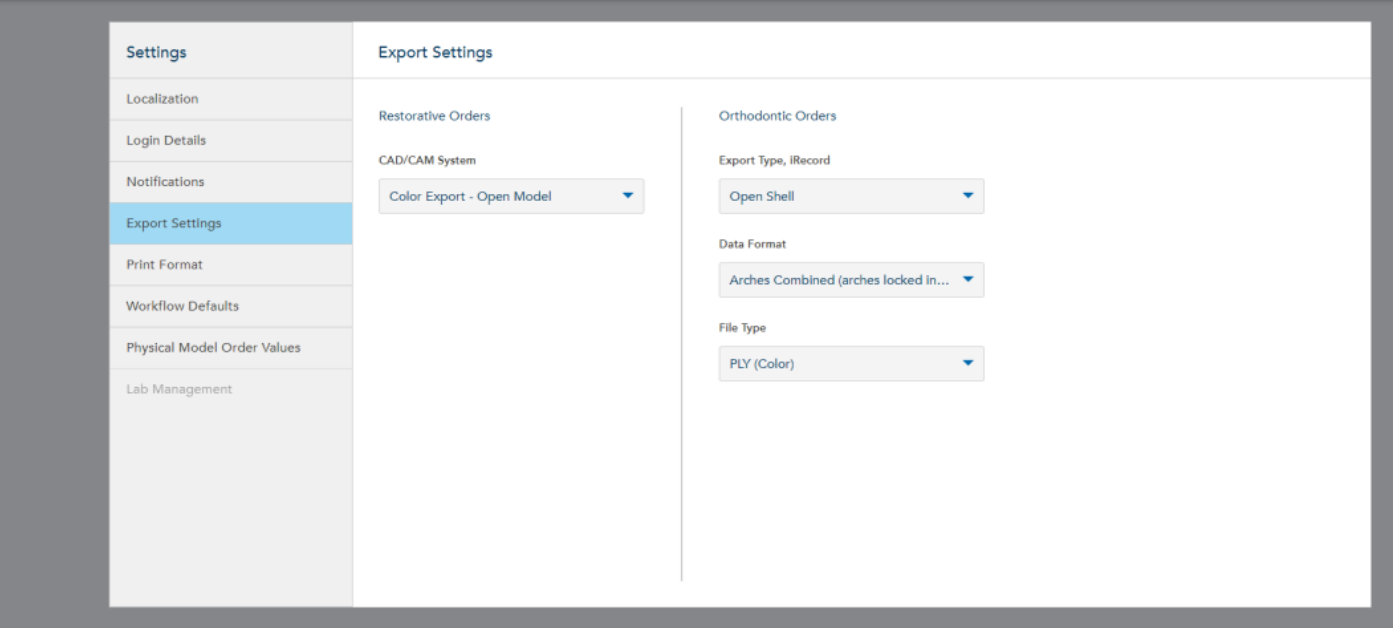
- If changing the Export Format, the change will apply to all cases downloaded from this point on, including old cases.
- In order to download a scan in a different format on demand, it can be done from myitero.com.
- A third party can choose to select export settings to be applied to all labs that are part of the integration. In case this option is used, it will not be reflected on myitero.com.
- Export format must be defined in order to get the cases from the integration unless it is applied by the 3rd party (no defaults are configured).
Download Scan On Demand
Allows to download a scan in more than one export setting.
| Endpoint information | |
|---|---|
| HTTP Method | POST |
| Path | {{Domain}}/{{Path}}/order/:orderID/export |
| API Version | 2 |
| Discovery Version | 2 |
Prerequisites
Retrieve the scan metadata from 'Get Orders' or 'Get Order By RxID' and use the ProcedureName field to determine the scan type.
| Procedure | Scan Type |
|---|---|
| Invisalign / Vivera | Orthodontic |
| Study Model / iRecord | Orthodontic |
| Appliance | Orthodontic |
| Fixed Restorative | Restorative |
| Denture | Restorative |
| Implant Planning | Restorative |
Flow
- Initiate export — Send a POST request with export parameters. Returns
202 AcceptedwithStatus: Processingwhile the IDE is being generated. - Poll for readiness — Re-issue the request every 40-50 seconds until the response returns
200 OKwithStatus: Ready. - Download file — Use the
Download3dModelURL from the200response to download the IDE via GET (requires bearer token).
Path Parameters
| Parameter | Type | Mandatory | Description |
|---|---|---|---|
OrderId |
string | Yes | ID of the order to export. |
Query Parameters
Note
Parameters vary depending on the type of order to be downloaded (Restorative or Orthodontic). Only parameters relevant to the current order should be passed on the call.
Passing no export parameters, omitting a required parameter, or including a parameter from the wrong scan type returns a 400 Bad Request response.
| Scan Type | Required Parameters | Do Not Pass |
|---|---|---|
| Orthodontic | ExportType, DataFormat, FileType |
CadCamSystemId |
| Restorative | CadCamSystemId |
ExportType, DataFormat, FileType |
| Scan Type | Optional Parameters |
|---|---|
| All Scan Types | PatientAnonymization |
Note
For more information about export settings, refer to the Export Settings section under Data Dictionary.
Orthodontic scans:
| Export Setting | ID | Name |
|---|---|---|
| ExportType | ||
| 1 | Open Shell | |
| 4 | Solid Model with Low Profile Base | |
| 5 | Hollow ABO Base | |
| 8 | Solid ABO Base | |
| DataFormat | ||
| 1 | One File (arches locked in occlusion) | |
| 2 | Two Files (arches oriented in occlusion) | |
| 3 | Two Files (each arch with teeth up) | |
| FileType | ||
| 1 | STL | |
| 2 | PLY | |
| 3 | STL + PLY |
Restorative scans:
| Export Setting | ID | Name |
|---|---|---|
| CadCamSystemId | ||
| 1 | CIL | |
| 2 | 3Shape | |
| 3 | Dental Wings | |
| 4 | Straumann | |
| 5 | TDS | |
| 6 | 5 Axis | |
| 7 | Biomet 3i | |
| 8 | DIO | |
| 9 | AmannGirrbach Ceramill | |
| 10 | Implants and Other Exports - Open Model | |
| 11 | Implants and Other Exports - Closed Model | |
| 12 | E4D | |
| 14 | exocad (legacy) | |
| 15 | Sirona inLab | |
| 16 | exocad (2014 or later) | |
| 17 | Color Export - Open Model | |
| 18 | Color Export - Closed Model | |
| 20 | exocad with color (2017 and later) | |
| 21 | ZFX | |
| 27 | Glidewell - Fast Design |
Parameters relevant for all scans:
-
PatientAnonymization: A boolean flag indicating whether patient data should be anonymized.- true
- false
Headers
Access token that is returned in pairing step.
Use type of ‘Bearer Token’
Response
The response contains either a Link or Download3dModel key.
The value of the Status key determines which is returned.
{
  "Status": "string",
  "Link": "string",             // Only present when Status is "Processing"
  "Download3dModel": "string",  // Only present when Status is "Ready"
  "ExportSettings": {
    "CadCamSystemId": "integer | null",
    "ExportType": "string | null",
    "DataFormat": "string | null",
    "FileType": "string | null",
    "PatientAnonymization": "boolean"
  }
}
Response fields:
| Field | Type | Description |
|---|---|---|
Status |
string |
|
Link |
string | Present when Status is Processing. Contains a full absolute URL. Issue a POST request to this URL (same bearer token) to poll for readiness. Absent when Status is Ready. |
Download3dModel |
string | Present when Status is Ready. Contains a full absolute URL. Issue a GET request to this URL (same bearer token) to download the file. Absent when Status is Processing. |
ExportSettings.CadCamSystemId |
integer | null | The CAD/CAM system ID as an integer. null for orthodontic scans. |
ExportSettings.ExportType |
string | null | String name of the export type (e.g. "OpenShell"). null for restorative scans. |
ExportSettings.DataFormat |
string | null | String name of the data format (e.g. "TwoFiles_ArchesOrientedInOcclusion"). null for restorative scans. |
ExportSettings.FileType |
string | null | String name of the file type (e.g. "STL"). null for restorative scans. |
ExportSettings.PatientAnonymization |
boolean | Echoed from the request. |
Status Codes
| Code | Meaning |
|---|---|
202 Accepted |
File generation is in progress. Poll the returned Link every 40-50 seconds. |
200 OK |
File is ready. Download using the Download3dModel URL with a GET request (same bearer token). |
400 Bad Request |
No export parameters passed; required parameter(s) missing; parameter from the wrong scan type was used on thc all; or invalid parameter value. |
401 Unauthorized |
Missing or invalid bearer token. |
404 Not Found |
OrderId does not exist or is not accessible. |
500 Internal Server Error |
Unexpected server-side failure. Retry with exponential back-off with jitter. |
Example
Export orthodontic order '1111111111' with:
- Export Type: Open Shell
- Data Format: Two files (arches oriented in occlusion)
- File Type: STL
- PatientAnonymization: True
Request
POST {{Domain}}/{{Path}}/order/1111111111/export?ExportType=1&DataFormat=2&FileType=1&PatientAnonymization=true
Response - Processing (202 Accepted):
{
    "Status": "Processing",
    "Link": "(FulliTeroPollingLink)",
    "ExportSettings": {
        "CadCamSystemId": null,
        "ExportType": "OpenShell",
        "DataFormat": "TwoFiles_ArchesOrientedInOcclusion",
        "FileType": "STL",
        "PatientAnonymization": true
    }
}
Response - Ready (200 OK):
{
    "Status": "Ready",
    "Download3dModel": "(FulliTeroDownloadLink)",
    "ExportSettings": {
        "CadCamSystemId": null,
        "ExportType": "OpenShell",
        "DataFormat": "TwoFiles_ArchesOrientedInOcclusion",
        "FileType": "STL",
        "PatientAnonymization": true
    }
}
Return Scan
Return a scan back to the clinic
| Endpoint information | |
|---|---|
| HTTP Method | PATCH |
| Path | {{Domain}}/{{Path}}/order/:orderId/return |
| API Version | 2 |
| Discovery Version | 2 |
Header
Access token that is returned in pairing step.
Type: Bearer Token
Path Variables
OrderId – ID of order that is returned.
Request body
Body should include a reason code and a free text describing the return reason.
Reason codes are:
- Margin line
- Missing scan
- Missing bite
- Other :
Info
An order can be returned in the following conditions:
- Scan was performed in the past seven days
- Scanner software version is 1.9 and up
- Order's returned, and then received again, maintain the same OrderID.
The API doesn't keep a history of the previous versions of the scan, only the current version is available for download.
Info
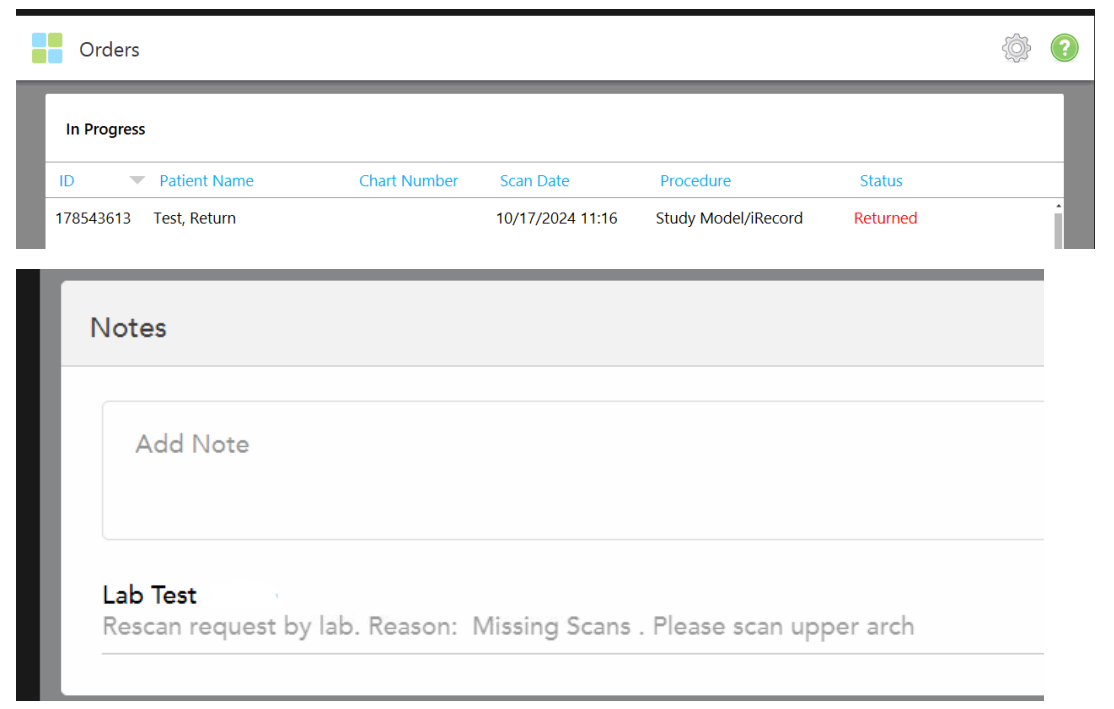
Doctor's point of view. When a scan is returned to the doctor, it will appear under the doctor's orders, at the top with Status 'Returned', like in the examples below. The order is returned to the scanner on which it was performed
Additionally, the return reason can be seen in the order's Rx. under the 'Notes' tab.
Send Scan to Modeling
A lab can choose to send a scan to modeling after receiving the scan from the clinic. A modeler technician will review the scan and make the necessary improvements.
| Endpoint information | |
|---|---|
| HTTP Method | PATCH |
| Path | {{Domain}}/{{Path}}/order/:orderId/back-to-modeling |
| API Version | 2 |
| Discovery Version | 2 |
Header
Access token that is returned in pairing step.
Type: Bearer Token
Path Variables
OrderId - ID of the order that will be sent to modeling
Request body
The body section will be made up of:
Note that we do not have specific restricted values for this fields, you can place a character string with all the necessary information.
Important
An order can be sent to modeling in the following conditions:
- Order Status = Ready for Download / Lab Review / Downloaded